In short
A Chat on WhatsApp button adds a second way to reach you inside your website chat. Visitors tap it and WhatsApp opens with your business number, with an optional first message already typed. You set the number per website in Frosvo, and the button shows in 11 languages. It needs no WhatsApp API; connect the API only if you want those chats in the shared inbox.
What you get
- One tap
- Opens WhatsApp with your number, in the app or on WhatsApp Web.
- First message
- Optionally pre-type a message, up to 200 characters.
- Per website
- Each website can show its own number, or none.
- 11 languages
- The button label follows the visitor's language, including right-to-left Arabic.
- No API needed
- Works with any WhatsApp number; connect the channel only to bring chats into the inbox.
Get started
Open the website
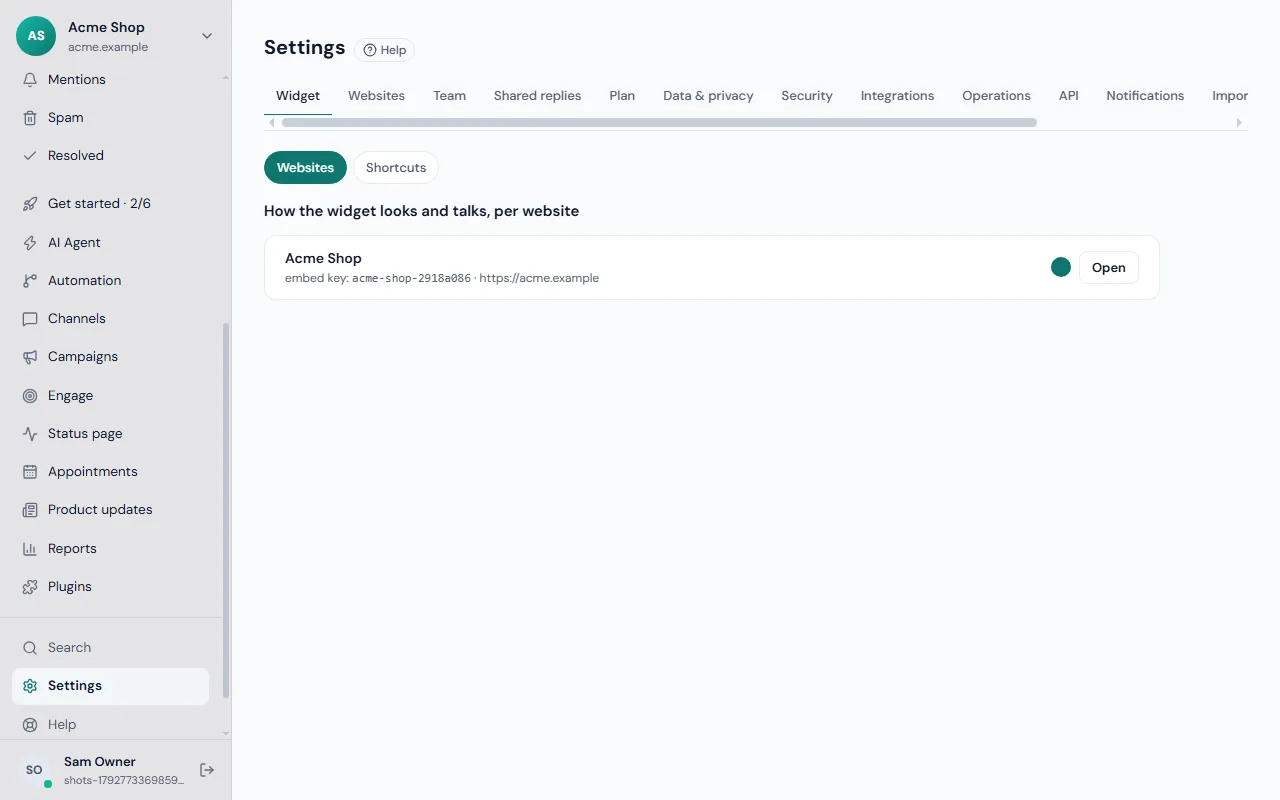
Settings → Widget, then Open next to the website.
Enter your number
With the country code, for example +971 50 123 4567.
Test it
Open your site, open the chat and tap the green button.
How the WhatsApp button works
You type your WhatsApp number, with its country code, into the website's widget settings. Frosvo turns it into a click-to-chat link and shows a green Chat on WhatsApp button on the chat's home screen and under the greeting. A tap opens WhatsApp in the app, or WhatsApp Web on a computer.
The button is a plain link. Frosvo does not read, store or send the WhatsApp conversation, and the visitor needs no account with you.
Button or WhatsApp channel?
The button suits teams that already answer on the WhatsApp Business app. If you want WhatsApp messages to arrive in the Frosvo inbox beside your other channels, with assignment, notes and reports, connect WhatsApp as a channel through Meta's Cloud API as well.
You can use both with the same number: the button invites people in, and the channel brings their messages into the inbox.
Frequently asked questions
How do I add a WhatsApp chat button to my website?
Open Settings, Widget in Frosvo, open your website and type your WhatsApp number with its country code. Save, and a Chat on WhatsApp button appears in the chat window. You can add an optional first message that visitors see already typed in WhatsApp.
Do I need the WhatsApp Business API?
No. The button is a click-to-chat link and works with any WhatsApp number. The API connection is only needed if you want WhatsApp conversations to arrive in the Frosvo shared inbox.
Can I hide the button?
Yes. Empty the WhatsApp number for that website and save. The button disappears from the chat straight away.