Many customers would rather message you on WhatsApp than use a website chat. The Chat on WhatsApp button puts both choices in the same place: visitors can chat on your site, or tap one button and continue in the app they already use all day.
What visitors see
A green Chat on WhatsApp button appears in your chat window: on the home screen beside "View all my conversations", and under your greeting before the visitor has written anything. Tapping it opens WhatsApp in a new tab or in the WhatsApp app, with a chat to your number. If you set a first message, it is already typed, so the visitor only has to press send.
The button follows the visitor's language: Frosvo's chat shows it in English, Spanish, French, German, Portuguese, Italian, Dutch, Turkish, Arabic, Urdu and Chinese.
Add the button
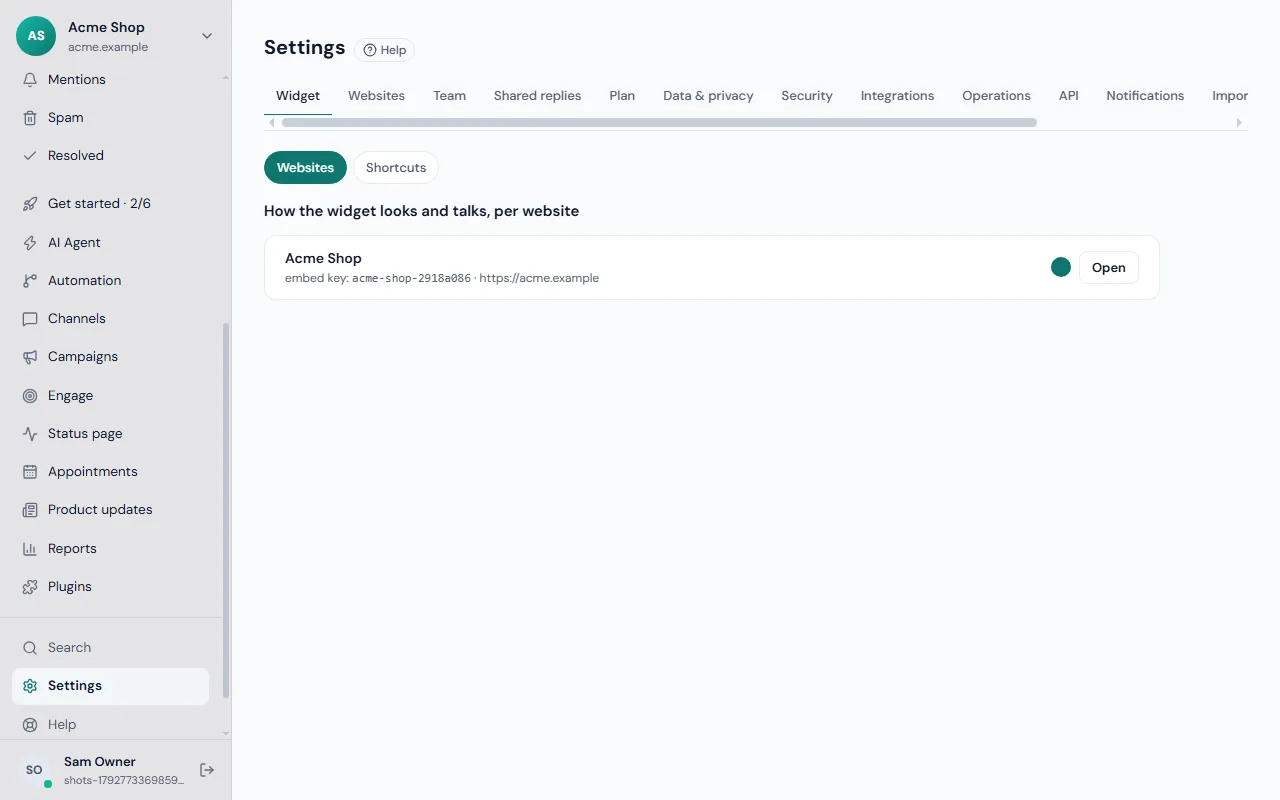
- Go to Settings → Widget and click Open next to the website.
- In WhatsApp number, type your number with its country code, for example
+971 50 123 4567. Spaces, dashes and brackets are fine; Frosvo keeps only the digits. - Optionally fill in First message on WhatsApp, such as "Hi! I have a question about [your company]". It can be up to 200 characters.
- Save the website's settings.
- Open your website in a private window, open the chat, and tap the button to check that WhatsApp opens with your number.
If the number does not look like a real international number, Frosvo asks you to correct it instead of saving it.
Where the conversation happens
The button only opens a chat between the visitor and your WhatsApp number. Frosvo does not read or store that conversation.
- Without the WhatsApp channel: messages arrive in the WhatsApp or WhatsApp Business app on the phone that owns the number. Your team answers there.
- With the WhatsApp channel connected: if the same number is connected through the Cloud API, the messages arrive in the Frosvo shared inbox with your other channels. See connect WhatsApp Business.
Choose one place to answer, and tell your team which one it is.
Tips
- Use a business number your team monitors during your office hours; see office hours to tell visitors when to expect an answer in the chat.
- Write a first message that says what the visitor wants, for example "Hi, I'd like help choosing a plan". It makes the first reply easier for your team.
- Test the button on a phone and on a computer. On a computer without the WhatsApp app, it opens WhatsApp Web.
- Do not put a personal number you do not want customers to have.
Common problems
- The button does not appear. The number box is empty or the number was not saved. Check the country code, then save and reload the page that has the chat.
- WhatsApp says the number is not on WhatsApp. Check the digits and the country code. The number must be registered with WhatsApp.
- Nothing happens when I tap it. A browser or pop-up blocker may be stopping the new tab. Allow pop-ups for your site and try again.
More about the chat's settings is in widget settings and installing the chat.