AI answers cost money for every message. A budget lets you decide the most you are willing to spend each month.
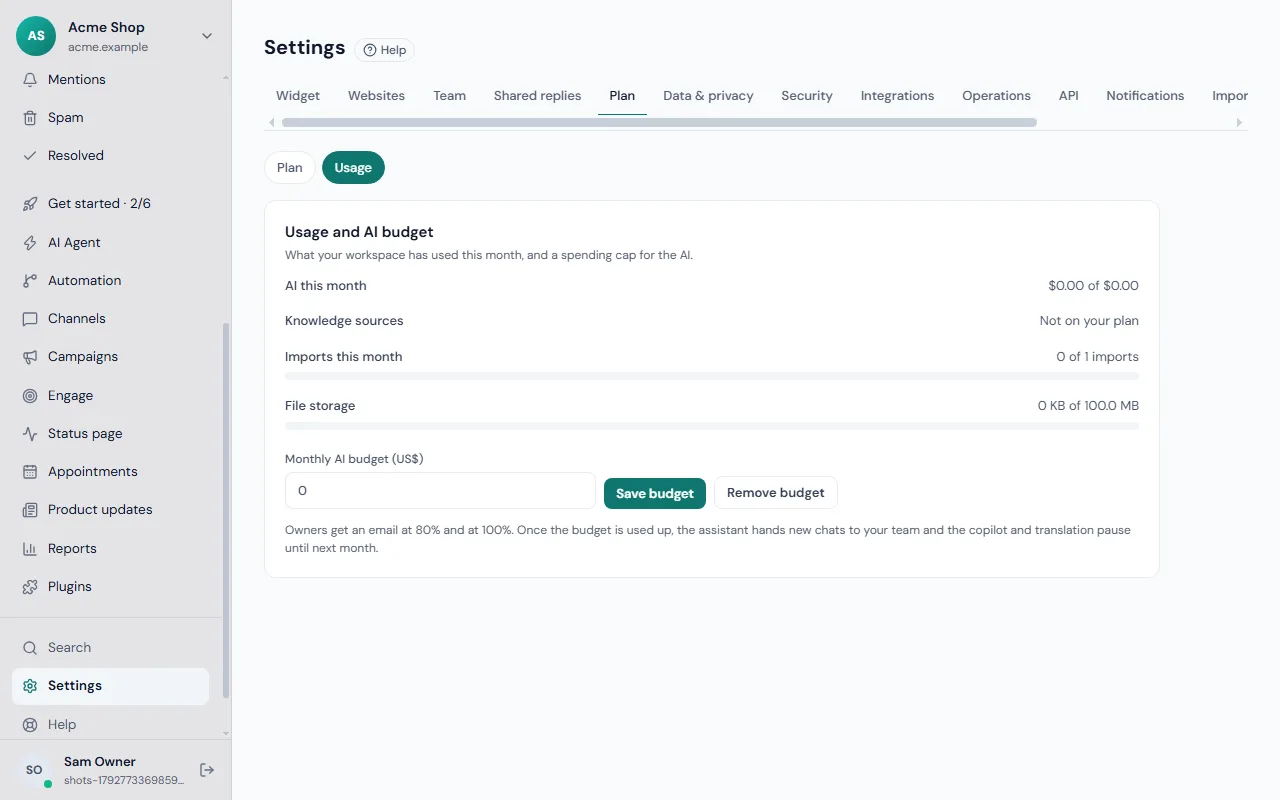
See your usage
Go to Settings → Plan → Usage. The page, titled Usage and AI budget, shows what the workspace has used this month:
- AI this month, with the amount spent and, once there is enough data, whether you are on pace for a given total by month end.
- Knowledge sources against your plan's limit.
- Imports this month against your limit.
- File storage, compared with your plan.
A line such as "3 of 10 sources" shows the allowance; "no limit" means the plan has none; "Not on your plan" means the feature is not included.
Set a budget
- Open Settings → Plan → Usage.
- In Monthly AI budget (US$), type the most you want to spend.
- Click Save budget.
To remove the cap, click Remove budget. Without one, the assistant answers up to your plan's allowance.
What happens at the limit
- At 80% and at 100% of the budget, owners receive an email.
- Once the budget is used up, the assistant stops answering new chats and hands them to your team. Visitors still reach a person.
- The copilot and live translation pause until the month starts again.
Spend is checked every half minute or so, so the changeover can lag by a moment.
What counts as AI use
Model work counts: assistant answers, copilot suggestions, translations and the assistant safety check.
Good habits
- Set a budget a little above what you used last month.
- Check the pace line mid-month.
- Keep your knowledge base tidy so answers are short and right the first time.
- Make sure your team is ready to take handovers if the budget runs out. The assistant guide explains handover.
For plan limits and invoices, see billing.