A support desk only works if you hear about the message. Frosvo lets each person decide how.
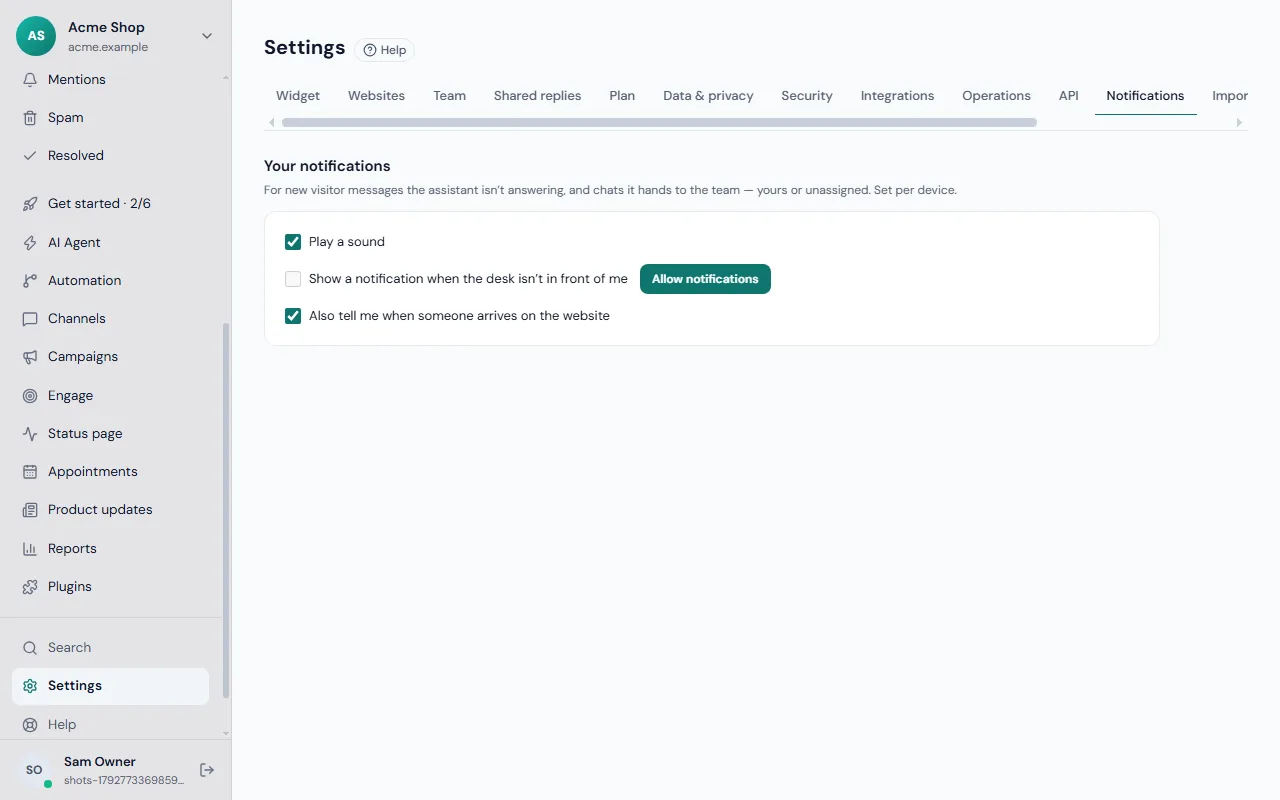
Turn alerts on
- Go to Settings → Notifications.
- Switch on Play a sound if you want a sound for a new message.
- Switch on Show a notification when the desk isn't in front of me, then click Allow notifications and accept the browser's question.
If you have not decided yet, a bar at the top of the desk says "Turn on notifications to hear about new visitors and messages." Browsers do not show any notification until you click it and choose Allow.
If the page says notifications are blocked in this browser, open the browser's site settings for the desk address and allow notifications. Some browsers cannot show notifications at all, and the page tells you.
Which messages notify you
New visitor messages that the assistant is not answering, and chats the assistant hands to the team that are yours or not assigned to anyone. Chats assigned to someone else do not notify you. These settings belong to each device.
When the desk is closed
Switch on Notify this device even when the desk is closed. The notification then arrives through the browser's push service even if the tab is shut. On an iPhone or iPad, add the desk to your Home Screen first.
The Windows desktop app shows system notifications and a badge, and the phone app notifies you when it is signed in.
Tell me about new visitors
Under the same settings, tick Also tell me when someone arrives on the website. Clicking the alert opens the visitor on the Visitors screen.
Your status: Online, Away, Do not disturb
Use the presence menu to set one of three states:
- Online: taking chats.
- Away: not taking new chats.
- Do not disturb: not taking new chats, and no sounds or notifications.
Your status also affects whether the widget tells visitors that someone is online. The desk can set Away for you when you are idle, but it never overrides a status you chose yourself.
If notifications still do not arrive
See troubleshooting, and check that your status is Online and the device is not in a silent mode. Learn how chats reach you in the inbox guide.