Every conversation lands in the Inbox, whichever channel it came from.
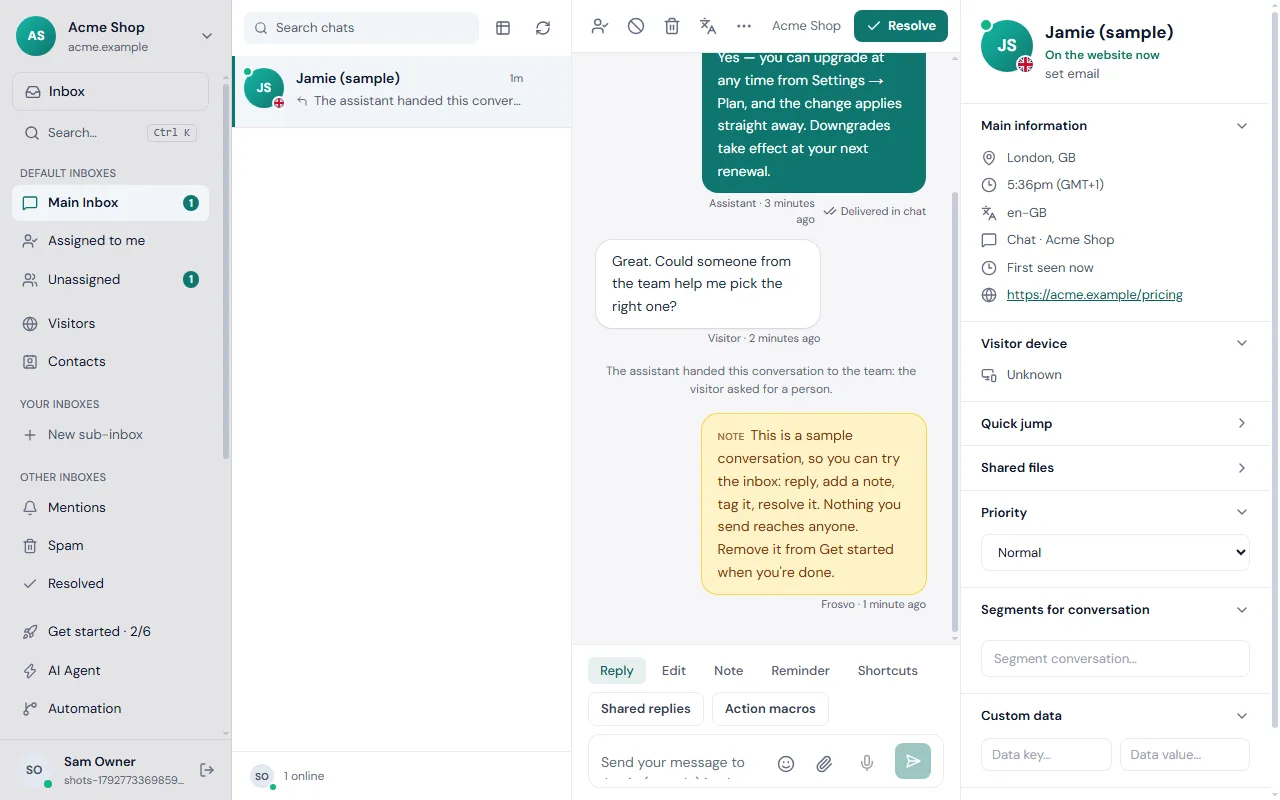
Replying
Type in the composer and send. The visitor sees you typing, and you see when they've read your reply. If they've left the page, your reply reaches them by email.
Working as a team
- Assign a conversation to yourself or a teammate; routing rules can do it for you (see Automation).
- Private notes are seen only by your team. Mention a teammate with @ to bring them in.
- Saved replies answer common questions in a keystroke; owners manage shared ones in Settings → Shared replies.
- If a teammate answers while you're writing, Frosvo warns you before your reply goes out, so the visitor doesn't get two answers.
- Tags and reminders keep track of follow-ups.
Resolving
Resolve a conversation when it's done. If the visitor writes again it reopens. Ask for a rating when a conversation ends to see how customers feel (Reports → ratings).
The assistant's hand-over
When the AI assistant hands a conversation to the team, you'll see why — the visitor asked for a person, it wasn't sure, or your rules said so — and the conversation so far, so nobody has to ask the same questions again.
Keyboard shortcuts
Press Ctrl K (⌘ K on a Mac) for the command palette: jump to any screen or setting, or type a name or a few words to find a conversation. Press ? for every shortcut. The most used: J and K move through the list, R replies, N writes a private note, E resolves or reopens, A assigns the conversation to you, and G then I, C, R or S goes to the inbox, contacts, reports or settings. Letters only work when you're not typing in a box.
Dark theme and your time zone
Settings → Account → Appearance and time: choose Light, Dark or Match this device, and the time zone the desk shows times in. Both are saved on your account, so every device you sign in on follows.
More about the inbox
- See where a reply got to: the ticks on a reply.
- Fix a mistake: edit and unsend.
- Work faster: keyboard shortcuts and saved replies and macros.
- Keep it clean: spam and blocking.
- Know where visitors are: online, away and left.