A shared inbox works only if everyone knows who has what. Assigning and resolving keep that clear.
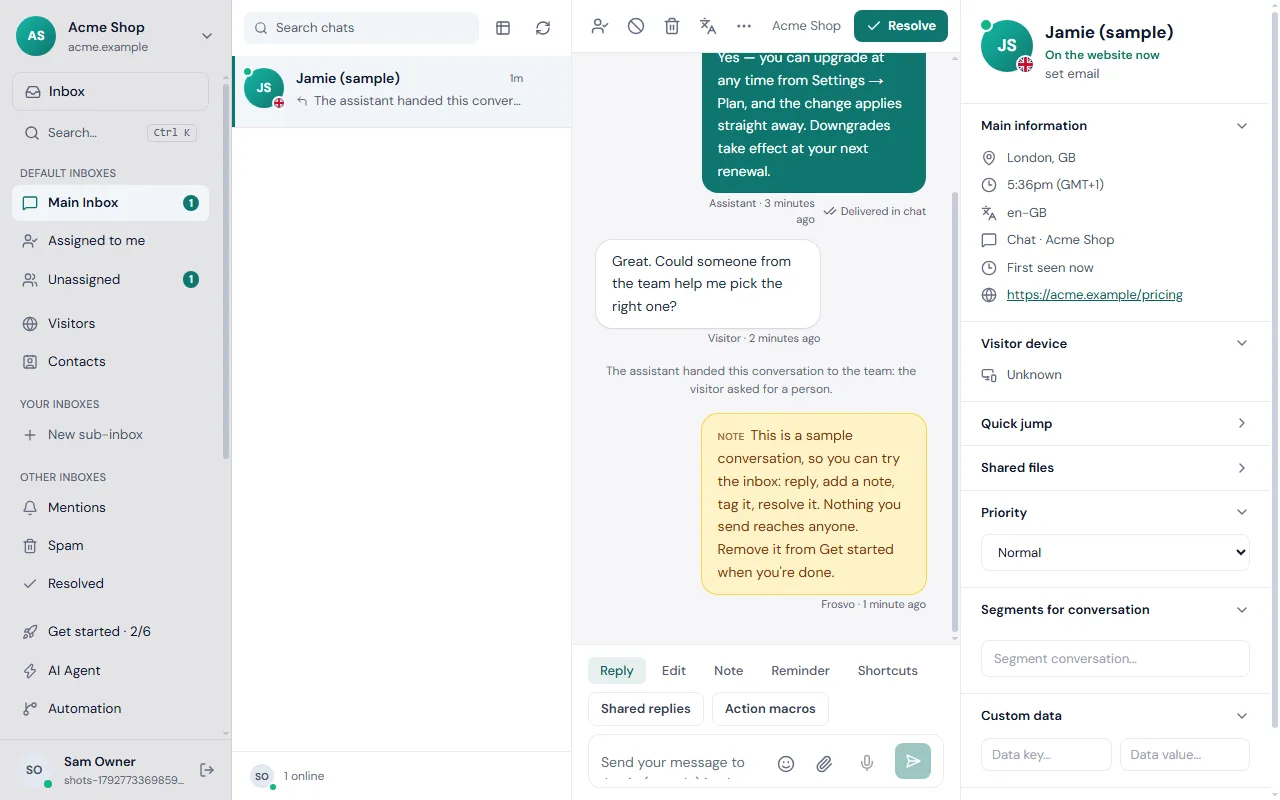
Assign a conversation
- Open the conversation in the Inbox.
- Take it yourself, or choose a teammate to hand it to.
- Press A to assign it to you, or take your name off.
The conversation then shows under that person's name, and the filters at the top of the inbox let each person see yours, unassigned or all. If you cannot finish it, release it so someone else can take it.
Let rules assign
Routing sends conversations to the right people by website, page, language or anything you know about the visitor. Round robin shares new conversations fairly among whoever is online. Set it up under automation.
Resolve
When the problem is solved, press E or choose Resolve. The conversation leaves the open list. You can ask for a rating when it ends, and the results appear in reports.
Reopen
Press E again, or choose Reopen, to bring it back. If the visitor writes again by themselves, the conversation reopens automatically.
Handing over from the assistant
When the assistant hands a conversation to your team, you see the reason and the conversation so far, so nobody asks the same questions twice. Take it and carry on.
Good habits
- Resolve as you go, so the open list shows only live work.
- Leave a private note before you hand over, explaining what is left.
- Use tags and reminders for follow-ups.
- Watch first-reply and resolution times in reports.
Read the inbox guide for everything else you can do in a conversation, and keyboard shortcuts to move faster.
Common questions
Who should resolve and who should assign? Whoever finishes the work resolves it. Assign when someone else is better placed, and leave a private note saying why, so the next person does not start from nothing.
What if I am away? Release your conversations before you go offline, or set your status to Away so new work goes to people who are available.