Connect channels under Channels. Each connection belongs to one of your websites, so conversations stay with the right brand.
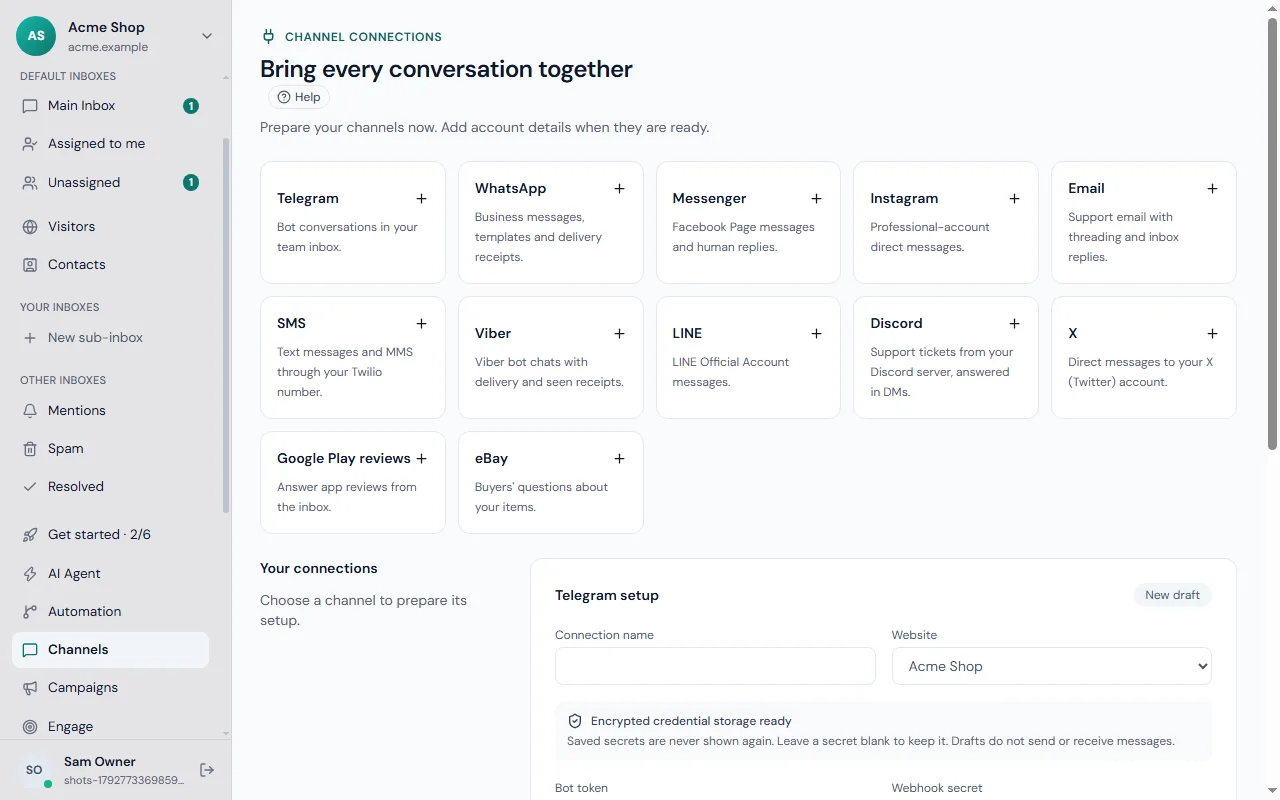
- Email — your support address arrives in the inbox; replies go out as threaded email.
- WhatsApp Business — customers message your number. Outside WhatsApp's 24-hour window you can send an approved template.
- Messenger — your Facebook Page's messages.
- Instagram — direct messages to your business account.
- Telegram — a bot that hands chats to your team.
- SMS — text messages (and picture messages) to your Twilio number. The sender's number is saved on the contact.
- Viber and LINE — your Viber bot and LINE Official Account.
- Discord — members type /support in your server; your replies arrive as private messages with a Reply button.
- X (Twitter) — direct messages to your account.
- Google Play reviews — each review is a conversation; your answer is posted as the developer reply (up to 350 characters).
- eBay — buyers' questions about your items; replies go back through eBay.
- Amazon — buyer messages through an email inbox (see the Amazon listing under Plugins).
- Phone — the Aircall, Ringover and KrispCall plugins log every call (answered, missed, voicemail) in the caller's conversation, and add a Call button next to conversations.
Every channel also has a listing under Plugins → Messaging with its setup steps.
You'll need the account details each provider gives you (tokens, IDs). They're stored encrypted and never shown again in full. After saving, use Check to confirm Frosvo can reach the provider, then switch the channel on.
If a provider stops accepting messages (for example an expired token), the channel shows the problem and failed messages wait for you to retry once it's fixed.
Setup guides
Each channel has its own step-by-step guide:
- Telegram, WhatsApp, Messenger, Instagram
- SMS with Twilio, Viber, LINE, Discord
- X direct messages, Google Play reviews, eBay
- Email: read a mailbox over IMAP and send from your own address
The Channels page
The Channels page lists every connection you have: its website, its type (Email, WhatsApp and so on), a status, and two buttons.
| Status | What it means | What to do | |---|---|---| | Active | Messaging is on. | Nothing. | | Checked, not turned on | The account works but messaging is off. | Click Edit, then Turn on. | | Saved, not checked or Draft | Details are saved but the account was not checked yet. | Click Edit, then Save and check. | | Error | The provider refused something. The reason is shown under the connection. | Click Edit and fix what the message says. | | Disabled | You switched the channel off; its saved passwords were removed. | Edit to set it up again, or Delete it. |
- Edit opens the connection with everything you saved. Passwords show as "Saved securely": leave them empty to keep them.
- Disable stops messaging and removes the saved passwords after you confirm. Conversations already in your inbox stay.
- Delete appears once a channel is disabled and removes it for good after you confirm.
- Add channel shows the channel picker. With no connections yet, the picker is the page.
Connect a channel in four steps
- Click Add channel and choose the channel.
- Fill in the form. Each field has a hint saying where to find its value, and a link to the step-by-step guide. Click Save and check: Frosvo saves the connection and checks the account in one go (for email it also checks the mailbox).
- If the channel needs an address added at the provider, the Steps to turn it on panel shows it with a Copy button. Add it there, then tick I have added this address. Google Play and eBay need no address.
- Click Turn on messaging, then send a real test message and reply to it.
If a channel misbehaves, see troubleshooting.