Visitors are more patient when they know what to expect. Office hours tell them.
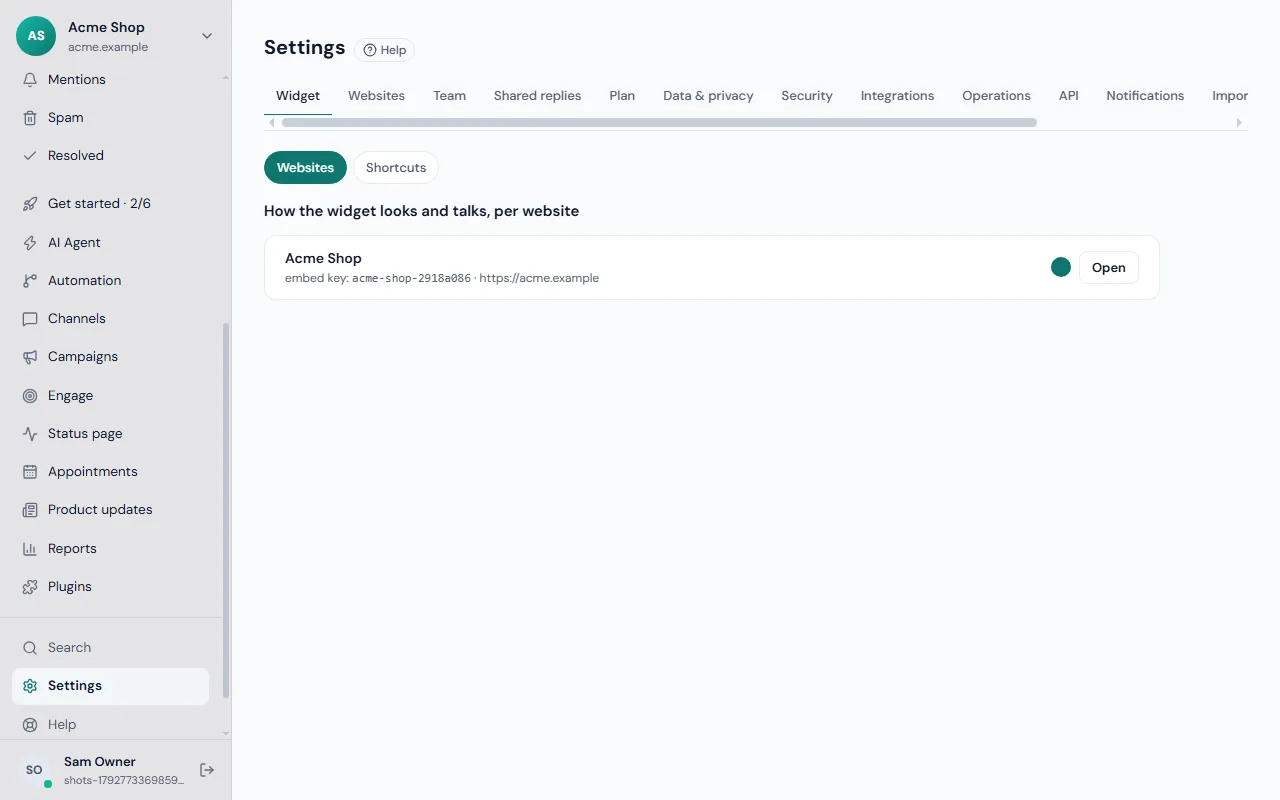
Set your hours
- Go to Settings → Widget and click Open next to the website.
- Find Office hours.
- Choose the Time zone your team works in.
- For each day, Mon to Sun, set the opening and closing times, or leave a day closed.
If you want the chat available at all times, leave it as Always open. Each website has its own hours.
Write the away message
In the same window, fill in Away message. Visitors see it when nobody is available, and they can leave an email address. If they leave before you answer, Frosvo can email your reply: see reply emails to visitors who left.
Greeting
The Greeting is the first line visitors see when the chat opens. Keep it short and friendly.
How it fits together
Whether the chat looks online depends on your hours and on whether someone on the team is actually available. Agents who are Away or on Do not disturb do not count, so check your status before a shift. A phone with the Frosvo app signed in also counts as available while its status is Online.
Tips
- Round times to something you can keep, such as 9:00 to 17:30.
- Put your real response time in the away message: "We reply within one working day."
- Use automation to route urgent conversations after hours.
For the rest of the chat settings, see widget settings.
Common questions
Can I have different hours for two websites? Yes. Hours and time zone are set per website.
Will visitors still be able to write after hours? Yes. They see the away message and can leave their email so you can answer later.
How do I handle a holiday? Change the hours for that day, or say so in the away message.