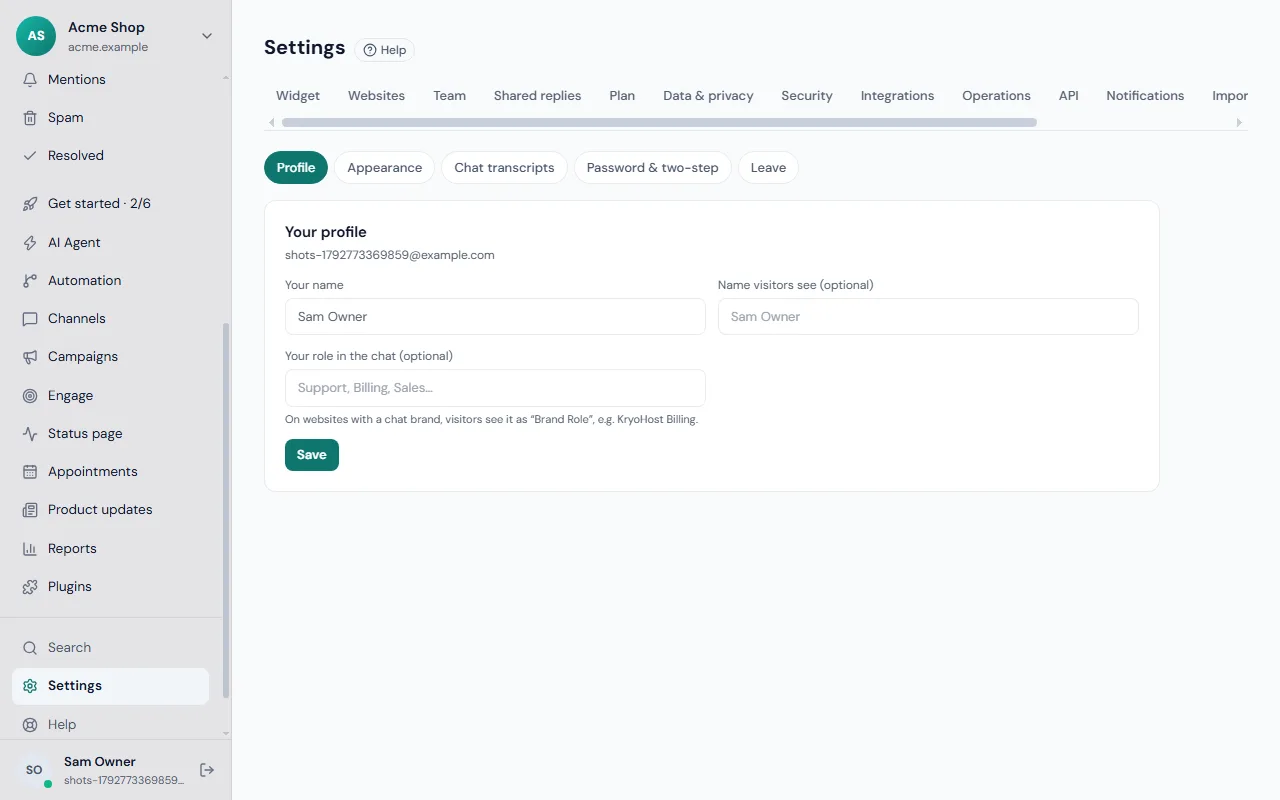
Settings is organised into pages across the top, and most pages have a short row of buttons for their parts, so you see one thing at a time. Here is the map.
The pages
| Page | What it's for | Parts | |---|---|---| | Widget | How the chat looks and talks on each website; saved shortcuts | Websites, Shortcuts | | Websites | Add a website and get its install line; identity verification; assistant safety check; email sending | A list of websites | | Team | Invite people, set roles | Members, Invitations, Roles & permissions | | Shared replies | The team's approved replies and action macros | Saved replies, Action macros | | Plan | Your plan, invoices and usage | Plan, Usage | | Data & privacy | Retention, requests, export and deleting the workspace | Privacy, Your data | | Security | Single sign-on, two-step for the team, handing over ownership, the audit log | Single sign-on, Two-step on the team, Hand over ownership, Audit log | | Integrations | Slack, your own systems, calls | Slack, Account connector, Calls | | Operations | Queue health and problems | Queue health, Problems | | API | Keys for your own tools | | | Notifications | Which alerts you receive | | | Import | Bring in contacts and history from another tool | | | Clients & sandboxes | For agencies and trying changes safely | | | Account | You: name, role, appearance, transcripts, password, two-step | Profile, Appearance, Chat transcripts, Password & two-step, Leave |
A website is a list, and each one opens in a window
On Widget and Websites, every website is a row with an Open button. Its settings appear in a window, so you never scroll past other websites to reach the one you want. Adding a website, identity verification and the assistant safety check are buttons at the top of Websites, each with its own window.
Who can change what
Owners can change everything. People with a custom role can have access to individual areas (websites, knowledge, automation, channels, contacts, reports, pages and plugins); set them under Team → Roles & permissions. Account settings are always yours.
Jump straight to a page
You can press Ctrl K to search, or share a direct link such as /desk?settings=team§ion=roles or /desk?settings=account§ion=signin.
Related: get started, your team, security and plans and billing.