When something breaks quietly, you can lose customers without knowing. Frosvo watches for failures and shows them in one place, so a problem gets fixed instead of unnoticed.
What Frosvo watches
- Emails that couldn't be sent, for example because your mail server refused the sign-in.
- Channels that stopped working, such as a rejected account token.
- Your support mailbox refusing its password or failing to connect.
- Webhooks that were switched off after repeated failures.
- Background jobs that failed several times in a row (these close by themselves when they recover).
- Server errors and errors the desk caught in the browser.
Find your problems
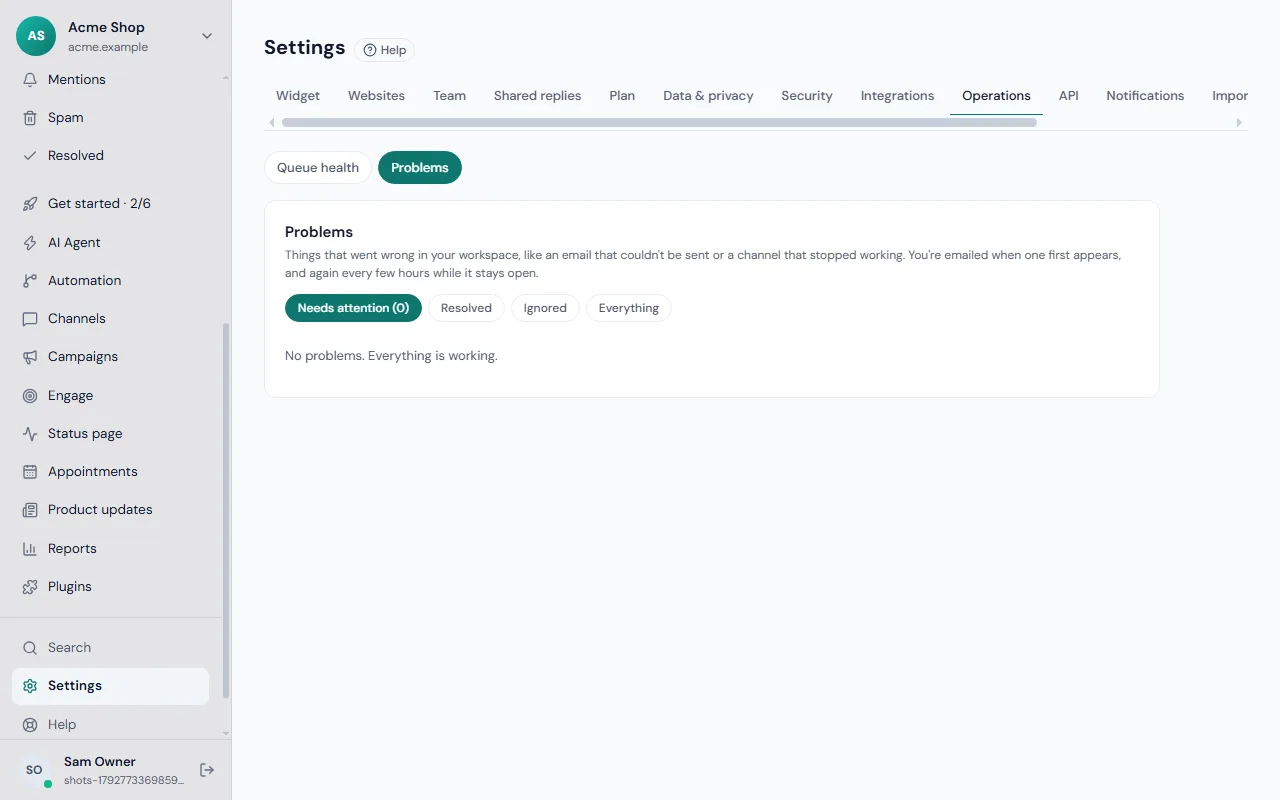
Go to Settings → Operations → Problems. Needs attention lists what is open, with how many times it happened and when it last did. When a problem is open, a red open problems button also appears in the desk, and a pop-up tells you when a new one arrives.
Review and resolve one
- Click Open next to a problem to see what happened, when it first appeared and how often.
- Choose what to do:
- Acknowledge to say you've seen it.
- Mark resolved once you've fixed it, with an optional note about what you did.
- Ignore to stop being reminded (it is still counted).
- Reopen if it wasn't fixed.
- Every change is saved on the audit log with who made it.
A resolved problem that happens again comes back open by itself.
Emails you receive
You get an email when a problem first appears and again every few hours while it is still open. The email says what happened and links to the Problems page. Repeats are counted on the page instead of sent separately.
Common fixes
- Email couldn't be sent: check your own mail server settings.
- Mailbox problem: see reading a mailbox.
- A channel was rejected: open Channels and save a new token, then enable messaging again.
- A webhook was switched off: fix the receiving address, then switch it back on in your webhook settings.
If you run the platform
Platform admins have an extra page, Admin → Problems, listing problems across every customer and the service itself, with filters and a Send a test alert button to check that alerts reach you. Alert emails go to the address set for the server, or to the platform admins.
Related: troubleshooting, security and the audit log and your team.